How to Prepare Artwork for Printing in Dubai
To prepare artwork for printing, build the file at the final size with 3 mm bleed on every edge, keep text inside a safe area, set the color mode to CMYK, use images of 300 DPI at print size, outline or embed your fonts, and export a print-ready PDF. Get those six things right and your file is far less likely to be sent back for fixes.
Every order at PrintEmirates has its artwork checked by a prepress operator before it goes on press. That check goes more smoothly when the file arrives in good shape. This guide breaks the job into eight steps, in the order you will meet them in Illustrator, InDesign, Photoshop, or Canva, and ends with a side-by-side table you can check your file against.
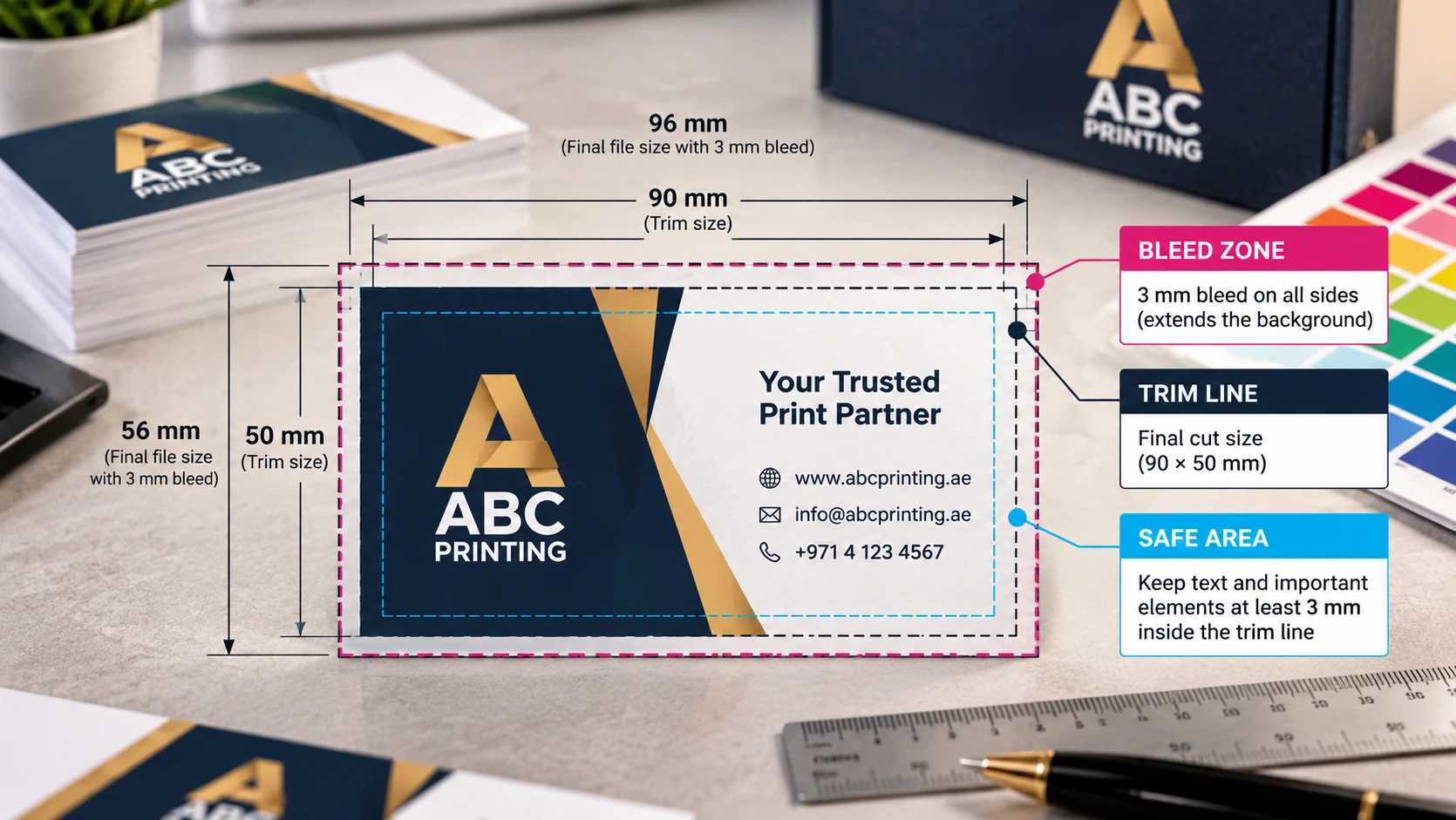
Table of Contents
- Step 1: File Format
- Step 2: Size and Bleed
- Step 3: Safe Area
- Step 4: Resolution
- Step 5: CMYK, Not RGB
- Step 6: Fonts
- Step 7: Black and Brand Colours
- Step 8: Die-Lines for Packaging
- Screen File vs Print-Ready File
- What the Artwork Check Covers
- Frequently Asked Questions
Step 1: File Format
A print-ready PDF is the safest format because it locks fonts, images, and layout into one file that opens the same way on every machine. PrintEmirates also accepts AI, PSD, INDD, and high-resolution JPG or PNG files. If you send a layered or editable file, include the linked images and fonts, or the printer will see a different design from the one on your screen.
Word and PowerPoint files are a poor choice for print. Margins shift, fonts are swapped, and colors are converted without warning. If Word or PowerPoint is the only tool you have, export to PDF using the highest-quality setting and check every page before you upload.
What this means: send a print-ready PDF whenever you can.
Step 2: Size and Bleed
Create your document at the finished size of the product, not at A4 by default. A standard UAE business card, for example, is 90 × 50 mm, while the European size is 85 × 55 mm. Check the product page or download the template so that your starting size matches the order.
Bleed is extra artwork that extends beyond the trim line. Printed sheets are cut after printing, and cutting is never perfectly exact, so any color or image that should touch the edge must run past it. Without bleed, a hairline of white paper can appear along one side of the finished piece.
Use 3 mm of bleed on all four sides. A 90 × 50 mm card therefore becomes a 96 × 56 mm document, with crop marks or a trim box showing where the cut falls. In InDesign, enter 3 mm in the bleed fields when you create the document. In Illustrator, set it in the document setup. In Canva, choose the print PDF download with bleed and crop marks switched on.
What this means: set up at finished size and extend backgrounds. 3 mm past the trim.
Step 3: Safe Area
The safe area is the opposite of bleed: a margin inside the trim line where nothing important should sit. Trimming can shift slightly, and text that sits too close to the edge may be clipped or look unevenly spaced once the piece is cut.
Keep logos, phone numbers, QR codes, and body text at least 3 to 5 mm inside the trim line. On folded brochures, leave extra room near the fold, where the paper curves and text can disappear into the spine. On a roll-up banner, the base hides the bottom of the graphic once it is loaded, so keep contact details well above it.
What this means: keep anything important at least 3 mm inside the trim.
Step 4: Resolution
Resolution decides whether an image prints sharp or soft. For printed pieces held in the hand, such as cards, flyers, and brochures, images should be 300 DPI at the size they will print. A photograph that is 300 DPI at 10 cm wide will not stay sharp if you stretch it to 30 cm.
Large-format work is different. Banners and wall graphics are viewed from a distance, so lower resolutions, often 100 to 150 DPI at full size, can still look clean. Ask before you assume, because the right figure depends on the product and the viewing distance.
Never rely on an image copied from a website or a messaging app. These are usually 72 DPI and compressed, and no software can add detail that was never captured. Ask for the original file from the photographer or designer. Logos should be supplied as vector files (AI, EPS, or PDF), which scale to any size without losing sharpness.
What this means: use 300 DPI images and vector logos.
Step 5: CMYK, Not RGB
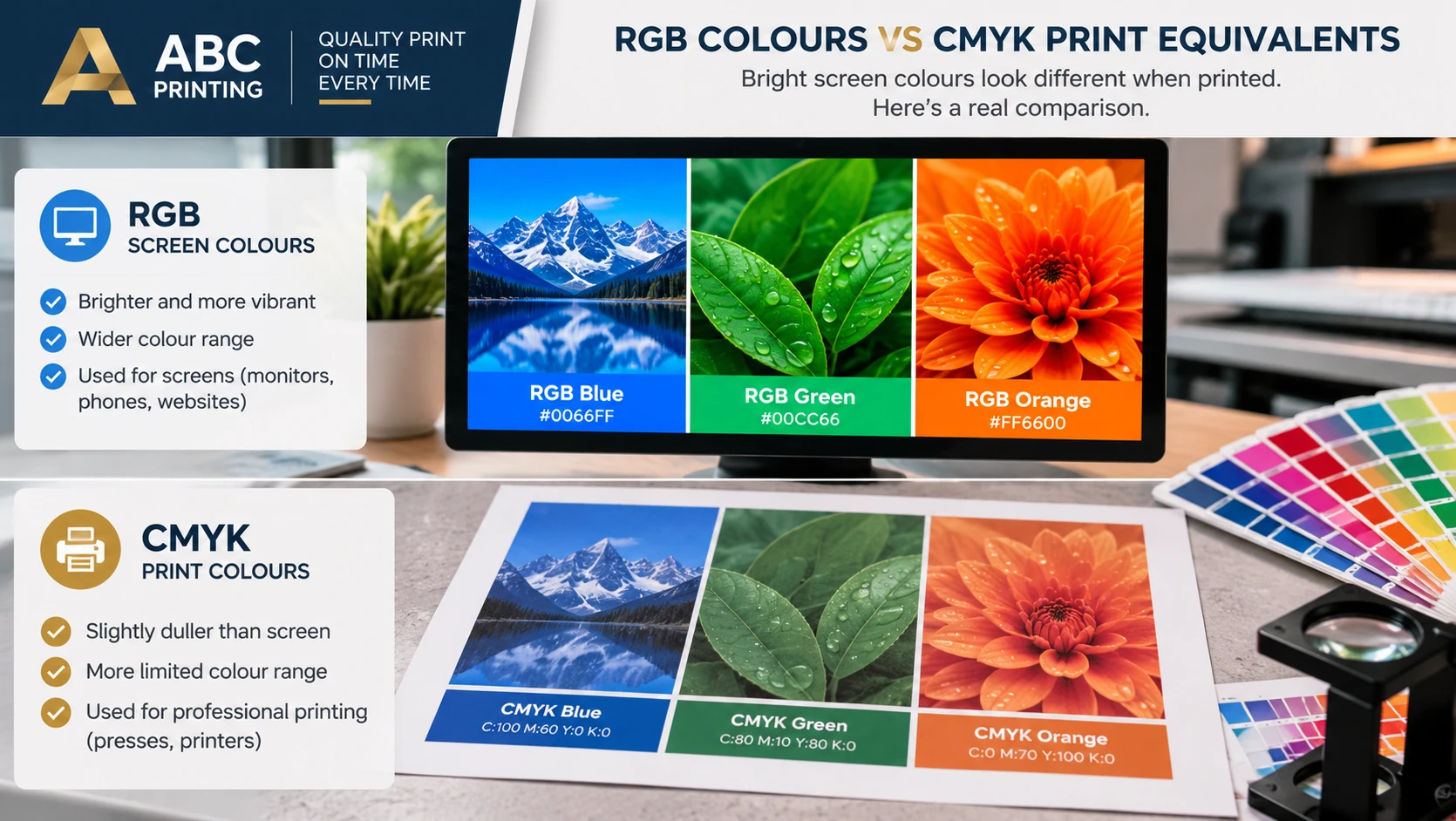
Screens mix light using red, green, and blue (RGB). Printing presses lay down cyan, magenta, yellow, and black ink (CMYK). The RGB range includes bright blues, greens, and oranges that CMYK ink cannot reproduce, so a vivid color on your monitor will often print duller.
Set your document to CMYK from the start, so you see the shift while you can still adjust it. If you convert an RGB file at the end, review every page afterwards, because gradients, neon shades, and saturated blues are the colors most likely to change.
Paper also affects color. Coated stocks hold ink on the surface and look crisper, while uncoated stocks absorb more ink and print slightly softer. A proof on screen is a guide, not a guarantee, so if an exact color matters, tell us when you order and send a previous printed sample.
What this means: design in CMYK and expect coated and uncoated stocks to differ.
Step 6: Fonts
If the printer's computer does not have your font, it substitutes another, and the text reflows. Lines break in new places, words overflow boxes, and the design changes. There are two ways to prevent this.
The first is to embed fonts when you export a PDF, which is the default in most PDF presets. The second is to convert text to outlines (Create Outlines in Illustrator and InDesign), which turns letters into shapes. Outlined text can no longer be edited, so keep a working copy, and reserve outlining for logos, headlines, and short lines rather than long documents.
What this means: embed or outline every font.
Step 7: Black and Brand Colors
Black needs more care than most colors. Plain black, meaning 100% K and nothing else, is right for body copy and small type, because a single ink cannot drift out of register and leave colored fringes around the letters.
Rich black adds the other three inks underneath the black to make large solid areas look deeper. A common mix is 60% cyan, 40% magenta, 40% yellow, and 100% black, though the exact recipe varies between printers and stocks. Use it for large backgrounds and panels, never for small text.
Avoid the default "registration" color for anything except crop marks. It prints at 100% of every ink and will cause problems on the press.
Brand colors deserve extra attention. A Pantone reference, such as a PMS number, identifies a specific ink color, while a CMYK mix is a simulation of it. When a brand guide lists both, send both references with your artwork so the printer can see which one you intend.
Name spot colors consistently in the file. If the same orange appears as three slightly different swatches, a prepress operator has to guess which is right. Build one swatch, name it clearly, and apply it everywhere.
What this means: use plain black for small text, rich black for big areas, and Pantone references for brand colors.
Step 8: Die-Lines for Packaging
Packaging needs a die-line, not just a design. A die-line is a flat outline showing every cut, crease, and fold of a box, bag, or sleeve. Your artwork must be placed on that outline so that each panel lands where it should once the box is cut and folded.
Put the die-line on its own layer, set it to a spot color or overprint, and keep it out of the printed artwork. Extend background color beyond the cut line by the bleed the die-line specifies, and keep text and logos clear of folds and glue flaps. Before you design a custom box, measure the product that has to fit inside it. Our custom product boxes page explains the common styles, from tuck-end to rigid, and the artwork guide covers die-line requirements in full.
What this means: ask for the die-line before you start designing a box.
Screen File vs Print-Ready File
Use this table as a final check before you upload.
| Setting | Screen file | Print-ready file |
|---|---|---|
| Format | Word, PowerPoint, or image file | Print-ready PDF |
| Size | A4 or screen dimensions | Finished size plus 3 mm bleed |
| Safe area | Text near the edge | Text 3 to 5 mm inside the trim |
| Images | 72 DPI web images | 300 DPI at print size |
| Color | RGB | CMYK, with Pantone references where needed |
| Fonts | Installed on your computer only | Embedded or outlined |
| Black | Default black everywhere | Plain black for text, rich black for large areas |
| Packaging | Design only | Artwork placed on the die line |
What the Artwork Check Covers?
Once you upload, a prepress operator opens the file and checks bleed, resolution, color mode, and fonts. If something will not print well, you hear about it before printing, not after. You then approve a proof before the job goes into production.
The check catches common faults, but it is not a substitute for proofreading. Spelling mistakes, wrong phone numbers, and outdated addresses will print exactly as supplied. Read the proof slowly, check every number twice, and ask a colleague to look at it as well.
Frequently Asked Questions
Q. What size should artwork be?
Ans. Supply it at the finished size of the product plus 3 mm bleed on every side. For example, a 90 × 50 mm business card becomes a 96 × 56 mm file. Product pages and templates list the exact size for each item.
Q. Can I send Canva or Word files?
Ans. A print-ready PDF is always preferred. You can export a PDF from Canva with bleed and crop marks and from Word at the highest quality, but layouts built in office tools are more likely to need adjustment at the artwork check.
Q. What if my file has no bleed?
Ans. Tell us when you upload. Sometimes the background can be extended or the artwork scaled slightly, but this depends on the design, and we will confirm what is possible before printing.
Q. Do I need Pantone colors?
Ans. Only if an exact brand colour matters. Send the Pantone reference or a previous printed sample, and we will match as closely as the chosen stock allows.
Ready to print? Browse business cards, flyers or brochures, or get a quote for a larger job. Upload your file and we will check it before anything goes on press. For the full specification, read the artwork guide.
Closing banner
Ready to send your artwork?
Artwork checked by a person before printing · Published pricing · Delivery across all seven emirates · One contact on WhatsApp