How to Prepare Print-Ready Files: Bleed, Resolution and CMYK
Print-ready files need three things correct before they're sent to press: bleed, so the design extends past the trim edge and avoids a white border; resolution, high enough that images stay sharp at final print size; and CMYK color mode, since printing uses a different color system than the RGB screens use. Getting these three right the first time is the single biggest factor in whether a print job comes back looking exactly as designed or comes back with problems that need correcting and reprinting.
This guide walks through each requirement in plain terms, along with a downloadable checklist you can use before submitting any file to print.
Why File Preparation Matters More Than People Expect?
A design can look perfect on screen and still print badly if the underlying file isn't built correctly for print production. Screens and printing presses handle color, resolution, and page dimensions in fundamentally different ways, and a file prepared only with screen viewing in mind almost always needs correction before it's genuinely print-ready. Understanding these three core requirements before you design, not after a proof comes back wrong, saves time, cost, and frustration.
Bleed: Why Your Design Needs to Extend Past the Edge
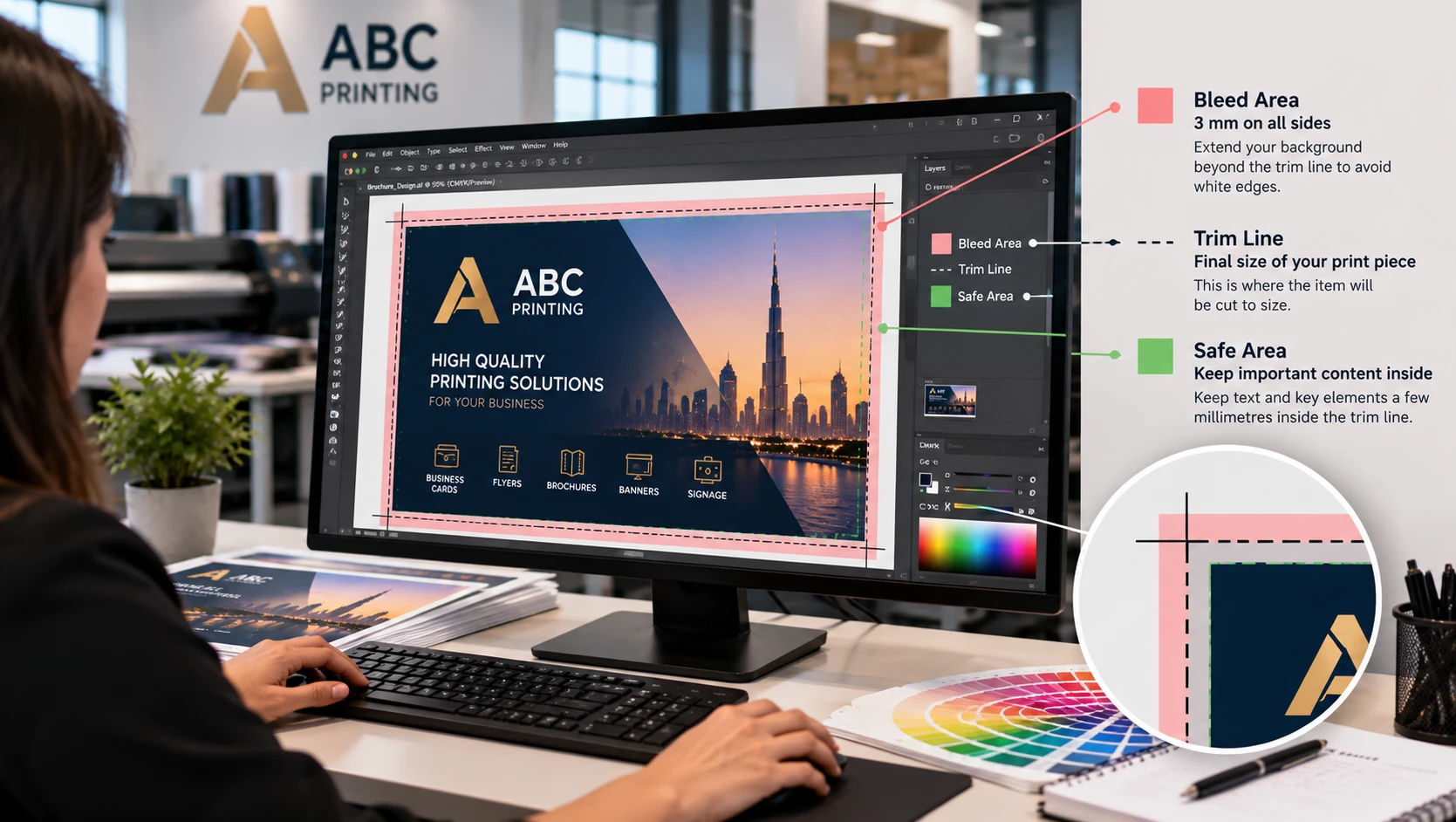
Bleed is the extra artwork extending beyond the final trim line of a printed piece, and it exists because cutting a printed sheet to its final size is never perfectly precise to the pixel. Without bleed, any tiny variation in the cut can reveal a thin white line of unprinted paper at the edge, which looks like an obvious mistake on a finished piece. The standard bleed allowance for most commercial prints, business cards, flyers, and brochures is 3 millimeters on every edge, meaning your background color or image needs to extend 3 millimeters past where the final trim line sits.
Alongside the bleed, keep a safe area, typically another few millimeters inside the trim line, free of any text or important content that must not be cut off. Content placed too close to the trim edge risks being clipped even with correct bleed, since the exact cut position can vary slightly from sheet to sheet.
Resolution: Getting Images Sharp at Print Size
Resolution measures how much image detail is packed into a given physical area, expressed in DPI, dots per inch. Screens typically display images at 72 or 96 DPI, which looks perfectly sharp on a monitor but appears blurry or pixelated once printed at a larger physical size, since print requires far more detail per inch to look crisp up close. The standard requirement for most commercial print is 300 DPI at the final print size, meaning an image needs enough actual pixel data to maintain that density once printed at its intended dimensions.
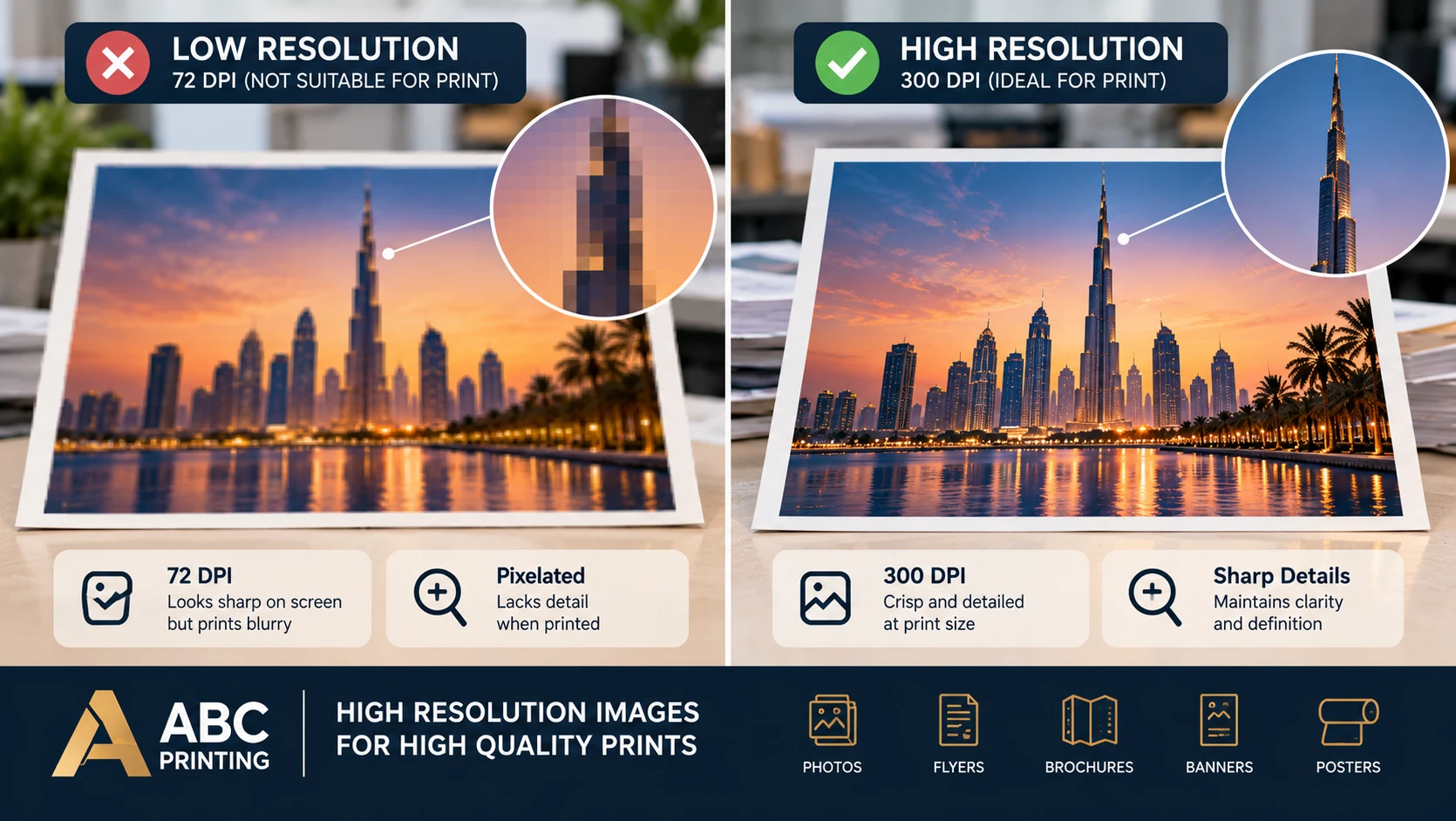
This is where a common mistake happens: an image pulled from a website is almost always far below 300 DPI at any reasonable print size, since websites are built for screen viewing, not print. Enlarging a low-resolution image to fit a larger print area doesn't add real detail; it just stretches the existing pixels and makes the blur more visible. Always source images at their original, highest available resolution, and check the actual pixel dimensions against your intended print size before finalizing a design.
CMYK vs RGB: Why Print Color Works Differently
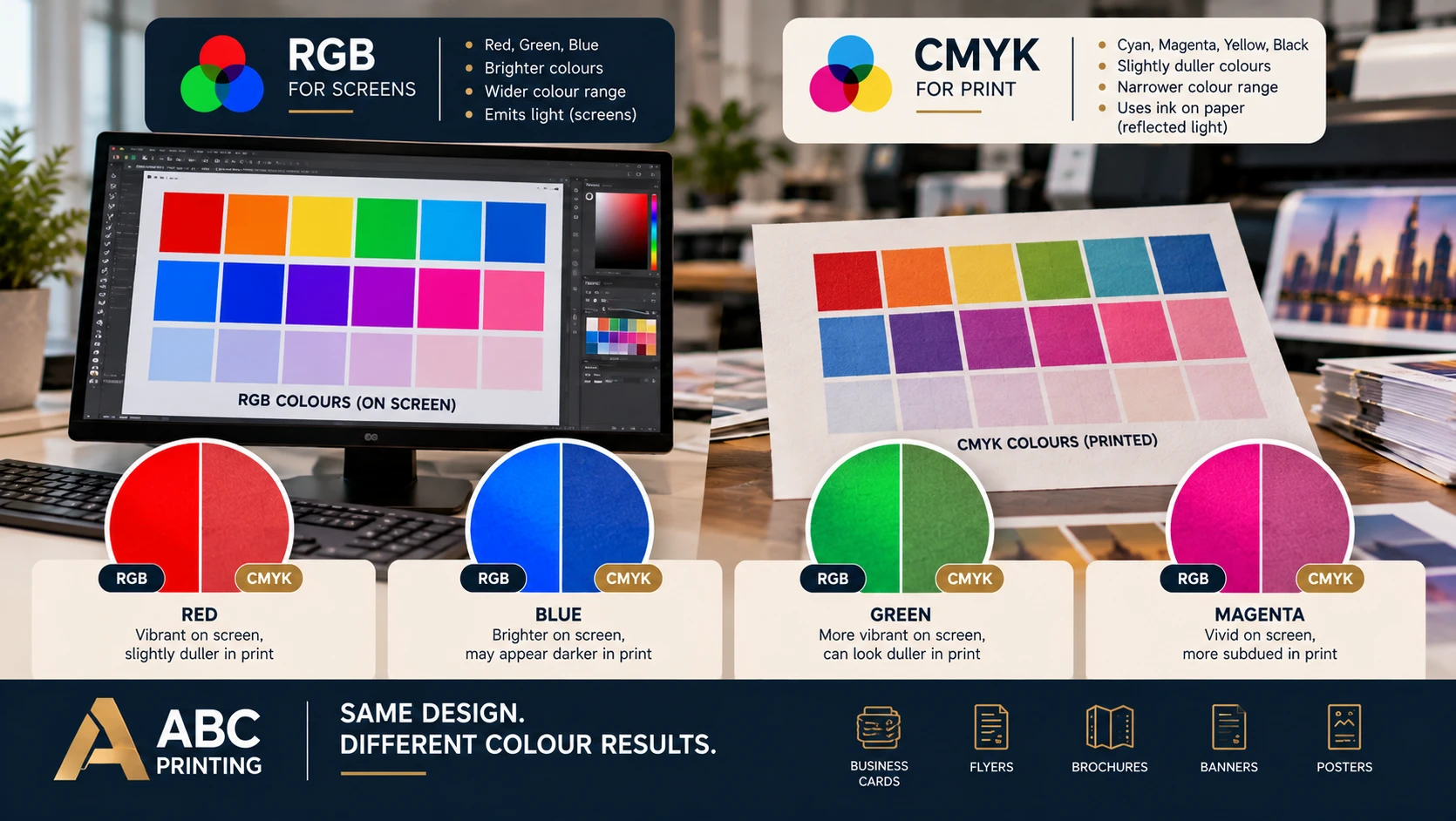
Screens display color using RGB, red, green, and blue light combined to create a wide range of colors through emitted light. Printing uses CMYK, cyan, magenta, yellow, and black inks combined on paper through reflected light, which is a fundamentally different process capable of producing a somewhat different range of colors than a screen can display. This is why a vibrant color that looks perfect on screen, particularly bright blues, greens, and oranges, can sometimes appear slightly duller or different once printed, since CMYK simply can't reproduce every color RGB can display.
To avoid a surprise at the proof stage, design and build your file in CMYK from the start where possible, rather than designing in RGB and converting at the last minute, since a late conversion can shift colors unpredictably compared to designing with CMYK values in mind throughout.
Spot Colors and Pantone Matching
For designs that need an exact, consistent brand color, particularly a logo color that must match precisely across every printed item, a spot color, often specified using the Pantone matching system, offers more predictable consistency than a standard CMYK build alone. Standard CMYK printing combines four inks to approximate a wide range of colors, which works well for most designs, but very specific brand colors can shift slightly between print runs or even between different areas of the same printed piece under standard CMYK. If exact color consistency matters for your brand, specify the exact Pantone reference for your logo or key brand color and confirm with your printer whether spot color printing is available and suitable for your specific job.
Fonts and Text Preparation
Beyond bleed, resolution, and color mode, fonts need specific handling before a file is truly print-ready. If your design software supports it, outline your fonts, converting text into vector shapes, before exporting your final file, since this ensures the exact typeface displays correctly regardless of whether the printer's system has that specific font installed. If outlining isn't possible for your file type, ensure fonts are properly embedded in the exported PDF instead. A file with missing or unembedded fonts can cause text to be substituted with a different, unintended typeface during production.
Rich Black vs Plain Black
A detail that surprises many first-time print buyers is that "black" in CMYK printing isn't automatically a single, simple color choice. Plain black, using only the black (K) ink channel, produces a flat, standard black suitable for text and simple line work. Rich black, combining black ink with small amounts of cyan, magenta, and yellow, produces a deeper, more saturated black often used for large solid background areas, since plain black alone can look slightly grey or thin across a big area. Using rich black for body text, however, can cause registration issues, a very slight blurring where the ink layers don't align perfectly, so reserve rich black for large background areas and use plain black for text and fine detail. [CONFIRM: recommended black build for specific print products]
File Formats for Print
A print-ready PDF is the standard, most reliable format for commercial print, since it preserves layout, fonts, and color information consistently across different systems. When exporting, choose a "print" or "press-ready" PDF preset rather than a "web" or "screen" preset if your software offers the choice, since these presets handle resolution and color differently by default.
Why a Proof Still Matters, Even With a Perfect File?
Even a file that meets every requirement in this guide—correct bleed, resolution, CMYK, and embedded fonts—can still benefit from a physical or digital proof before a large run is committed. A proof catches things a checklist alone can't: how a specific paper stock affects color, whether a design element that looked fine on screen feels crowded once printed at actual size, or a small last-minute error that slipped through despite careful preparation. Treat proper file preparation and a proof as complementary steps, not a substitute for one another, particularly for a large or high-value print run.
A Downloadable Print-Ready Checklist
Use this checklist before sending any file to print:
- Bleed extends 3 mm past the trim line on every edge.
- Important text and content stay within the safe area, clear of the trim edge.
- All images are at least 300 DPI at the final print size.
- No image has been enlarged beyond its original resolution.
- The file is built or converted to CMYK color mode.
- Fonts are outlined or properly embedded.
- The file is exported as a print-ready PDF.
- Final dimensions match the product's exact specification.
Keep this checklist alongside your design process for every project, not just as a final check, since building files correctly from the start avoids needing to rework a design after the fact.
Common File Preparation Mistakes to Avoid
- Forgetting to bleed entirely. This is the most common reason a printed piece shows an unwanted white edge.
- Using web images for print. Screen-resolution images almost always fall short of the 300 DPI needed for sharp print output.
- Designing in RGB without checking CMYK conversion. Vibrant screen colors can shift unexpectedly once converted for print.
- Leaving fonts unembedded or not outlined. This risks unintended font substitution during production.
- Placing important content too close to the trim edge. Even with correct bleed, content needs a safe margin from the cut line.
Frequently Asked Questions
Q. How much bleed do I need for standard print?
Ans. 3 millimeters on every edge is the standard for most commercial print, including business cards, flyers, and brochures.
Q. What resolution do my images need to be?
Ans. 300 DPI at the final print size is the standard requirement for sharp, professional results.
Q. Why does my design look different in print than on screen?
Ans. Print uses CMYK colour and screens use RGB, which can produce different results, particularly for vibrant colours. Design in CMYK where possible.
Q. Should I outline my fonts before submitting a file?
Ans. Yes, if your software supports it, or ensure fonts are properly embedded in your exported PDF as an alternative.
Q. What file format should I submit for printing?
Ans. A print-ready PDF is the standard, most reliable format for commercial print production.
Get Your Files Print-Ready
Follow the checklist above before submitting artwork, and reach out if you're unsure whether your file meets specification. For full artwork guidance across every product, see our Artwork Guide and downloadable templates, or message us on WhatsApp with your file for a quick check before you order.